Visual Basic Books
Home
Visual Basic Beginner Books
Visual Basic Database Books
Visual Basic ActiveX Books
Visual Basic Advanced Books
VB Internet Programming Books
Resources
Visual Basic Links
Add a Link
Subscribe to Mailing List
 Visual Basic Books
Microsoft Visual Basic 6 Professional (step by step)tip Confused by all this resizing? Don’t sweat it. You’re working with two windows here: the Project Container window and the Form window (which fits inside the Project Container window). The troublesome part is that you resize each window by using the resizing pointer in the lower-right corner of the frame, and these two corners tend to overlap a bit. To get more real estate to design your projects, you may want to run Windows in 800 x 600 mode, which you can do by clicking the Windows desktop with the right mouse button, clicking Properties, clicking the Settings tab, and then moving the Desktop Area slider to 800 x 600.
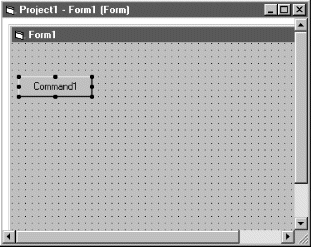
CommandButton control The CommandButton control is selected, and the mouse pointer changes to crosshairs when it rests on the form. The crosshairs are designed to help you draw the rectangular shape of a command button. When you hold down the left mouse button and drag, the command button object takes shape and snaps to the grid formed by the intersection of dots on the form. Try creating your first command button now.
The name of the command button is Command1. |